Composite Image
Create stunning composite images by merging video frames using various composition modes.
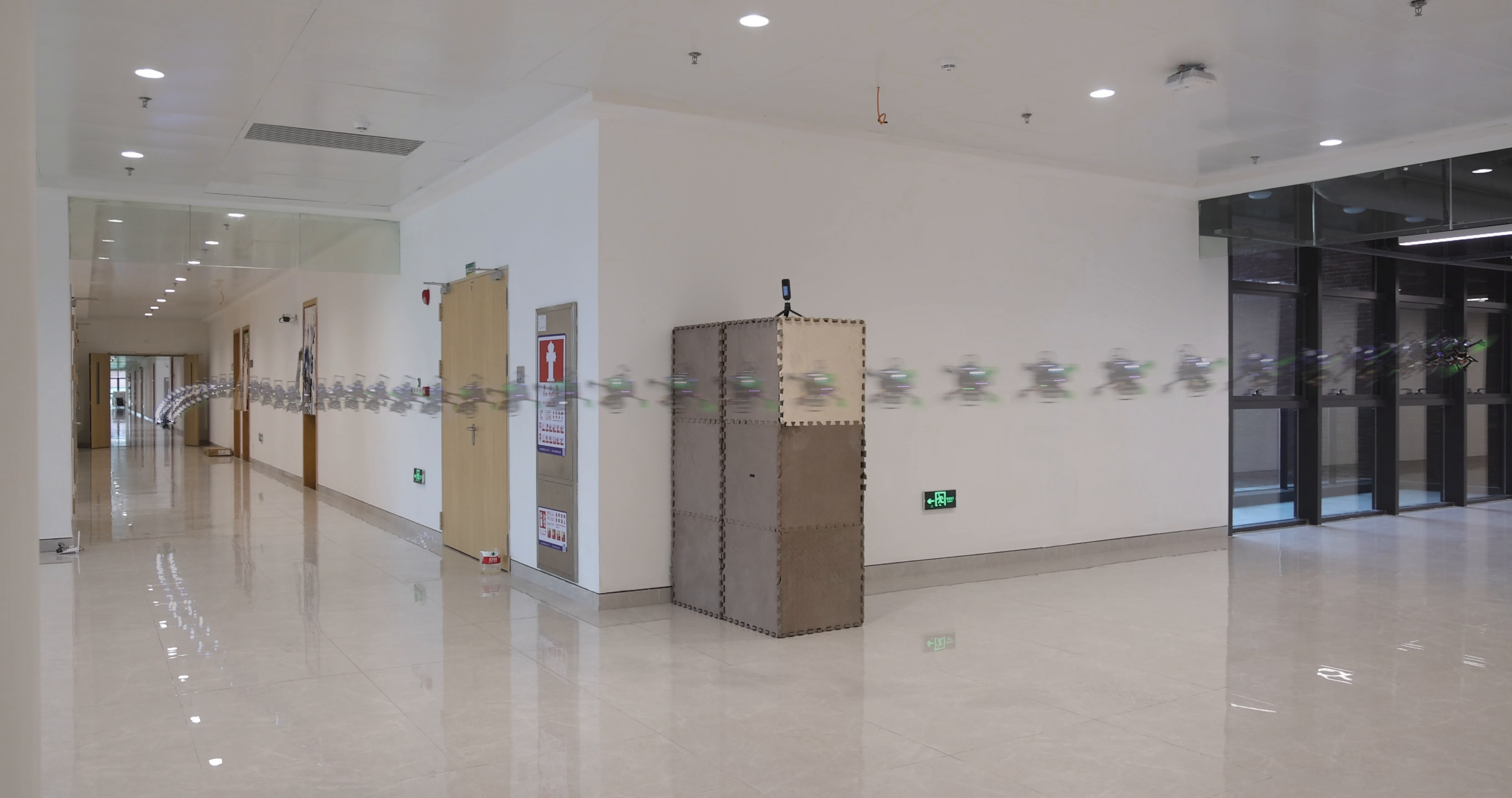 Example composite image created using VAR mode - showing motion trails from video frames
Overview
The dynamo-composite-image tool extracts frames from a video and merges them using different composition modes to create dynamic visual effects. This is useful for creating motion trails, long-exposure effects, and artistic visualizations.
Command-Line Usage
dynamo-composite-image --video_path <path> [options]
Required Arguments
| Argument | Description |
|---|---|
--video_path |
Path to the input video file |
Optional Arguments
| Argument | Default | Description |
|---|---|---|
--mode |
VAR |
Composition mode: VAR, MAX, or MIN |
--start_t |
0 |
Start time in seconds |
--end_t |
999999 |
End time in seconds |
--skip_frame |
1 |
Number of frames to skip (1 = process every frame) |
--alpha |
0.5 |
Alpha blending factor for intermediate frames (0.0-1.0) |
--output |
Auto | Output file path (default: <video_name>.jpg) |
--disable_pbar |
false |
Disable progress bar |
Composition Modes
VAR Mode (Recommended)
Uses pixels that are furthest from the mean of all frames, creating dynamic composite effects with maximum variation.
dynamo-composite-image --video_path ./example/video.mp4 \
    --start_t 0.0 --end_t 99.0 \
    --skip_frame 2 --mode VAR \
    --alpha 0.4 --output ./composite.png
Best for: Motion trails, action sequences, dynamic scenes
MIN Mode
Keeps the darkest pixels from all frames, creating a “minimum exposure” effect.
dynamo-composite-image --video_path ./example/video.mp4 \
    --start_t 0.0 --end_t 99.0 \
    --skip_frame 2 --mode MIN \
    --output ./composite.png
Best for: Dark backgrounds, silhouettes, removing bright objects
MAX Mode
Keeps the lightest pixels from all frames, creating a “maximum exposure” effect.
dynamo-composite-image --video_path ./example/video.mp4 \
    --start_t 0.0 --end_t 99.0 \
    --skip_frame 2 --mode MAX \
    --output ./composite.png
Best for: Light trails, bright objects on dark backgrounds, star trails
Python API
You can also use the CompositeImage class programmatically:
from dynamo_figures import CompositeImage, CompositeMode
import cv2

# Create a composite image with VAR mode
merger = CompositeImage(
    mode=CompositeMode.MAX_VARIATION,
    video_path="./example/video.mp4",
    start_t=0.0,
    end_t=99.0,
    skip_frame=2,
    alpha=0.4,
    disable_pbar=False
)

# Generate the composite
result = merger.merge_images()

# Save the result
cv2.imwrite("output.jpg", result)
CompositeMode Enum
| Mode | Description |
|---|---|
CompositeMode.MAX_VARIATION |
Maximum variation from mean (VAR) |
CompositeMode.MIN_VALUE |
Minimum pixel values (MIN) |
CompositeMode.MAX_VALUE |
Maximum pixel values (MAX) |
Constructor Parameters
CompositeImage(
    mode,              # CompositeMode enum value
    video_path,        # Path to input video file
    start_t=0,         # Start time in seconds
    end_t=999,         # End time in seconds
    skip_frame=1,      # Frames to skip
    alpha=0.5,         # Alpha blending factor
    disable_pbar=False # Disable progress bar
)
Methods
| Method | Returns | Description |
|---|---|---|
extract_frames() |
list |
Extract frames from video as numpy arrays |
merge_images() |
numpy.ndarray |
Create and return the composite image |
Examples
Process Only First 10 Seconds
dynamo-composite-image --video_path input.mp4 --end_t 10.0 --mode VAR
Skip Every Other Frame for Faster Processing
dynamo-composite-image --video_path input.mp4 --skip_frame 2 --mode VAR
Create High-Contrast Composite
dynamo-composite-image --video_path input.mp4 --alpha 1.0 --mode VAR
Subtle Blending Effect
dynamo-composite-image --video_path input.mp4 --alpha 0.2 --mode VAR