Frame Extraction
Extract single frames from video files and save them as images.
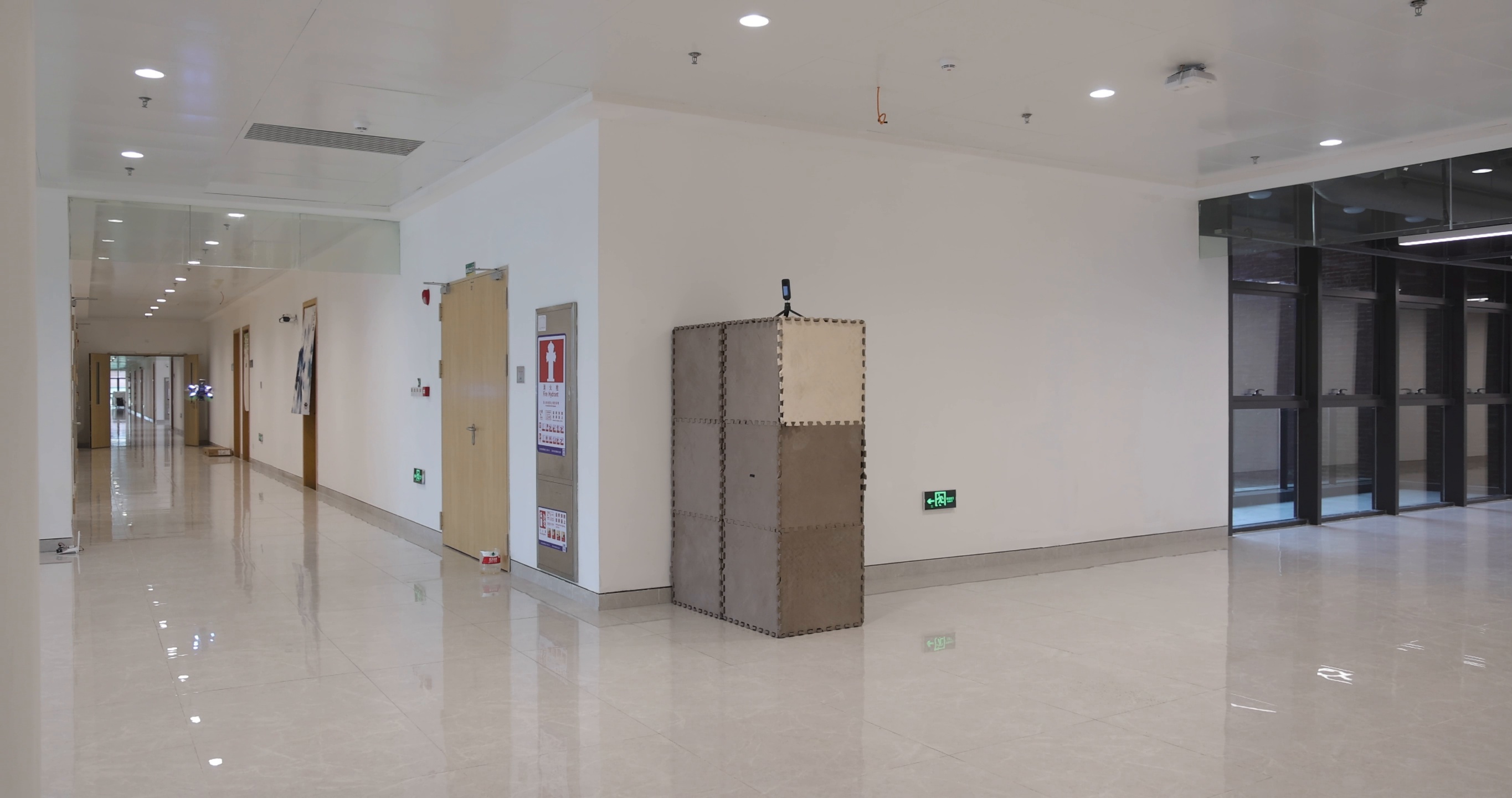 Example frame extracted from a video file using dynamo-pic-from-video
Overview
The dynamo-pic-from-video tool extracts a single frame from a video file and saves it as an image. You can specify the exact frame number, a time in seconds, or let it default to the middle frame.
Command-Line Usage
dynamo-pic-from-video --video_path <path> [options]
Required Arguments
| Argument | Description |
|---|---|
--video_path |
Path to the input video file |
Optional Arguments
| Argument | Default | Description |
|---|---|---|
--output |
Auto | Output file path (default: <video_name>_frame.jpg) |
--frame |
None | Frame number to extract (0-indexed) |
--time |
None | Time in seconds to extract frame from |
--info_only |
false |
Only display video information |
You cannot use both
--frameand--timesimultaneously. Choose one or the other.
Usage Examples
Extract Middle Frame (Default)
When no frame or time is specified, the middle frame is extracted:
dynamo-pic-from-video --video_path input.mp4 --output frame.jpg
Extract Frame at Specific Time
Extract a frame at 5.5 seconds into the video:
dynamo-pic-from-video --video_path input.mp4 --time 5.5 --output frame.jpg
Extract Specific Frame Number
Extract frame number 100 (frames are 0-indexed):
dynamo-pic-from-video --video_path input.mp4 --frame 100 --output frame.png
Get Video Information Only
Display video properties without extracting a frame:
dynamo-pic-from-video --video_path input.mp4 --info_only
Output:
 -- Load Param: video path input.mp4
 -- Load Param: frame None
 -- Load Param: time None
 -- Video: input.mp4
 -- Dimensions: 1920x1080
 -- Frames: 3600
 -- FPS: 30.00
 -- Duration: 120.00 seconds
Python API
You can also use the FrameExtractor class programmatically:
from dynamo_figures.pic_from_video import FrameExtractor

# Create extractor for a specific time
extractor = FrameExtractor(
    video_path="./video.mp4",
    time_seconds=10.5
)

# Extract and save the frame
success = extractor.extract_frame("output.jpg")

if success:
    print("Frame extracted successfully!")
Get Video Information
from dynamo_figures.pic_from_video import FrameExtractor

extractor = FrameExtractor(video_path="./video.mp4")
info = extractor.get_video_info()

if info:
    print(f"Video: {info['path']}")
    print(f"Dimensions: {info['width']}x{info['height']}")
    print(f"Frames: {info['frame_count']}")
    print(f"FPS: {info['fps']:.2f}")
    print(f"Duration: {info['duration']:.2f} seconds")
Constructor Parameters
FrameExtractor(
    video_path,           # Path to input video file
    frame_number=None,    # Frame number to extract (0-indexed)
    time_seconds=None     # Time in seconds to extract frame from
)
Methods
| Method | Returns | Description |
|---|---|---|
get_video_info() |
dict or None |
Get video properties as a dictionary |
extract_frame(output_path) |
bool |
Extract frame and save to specified path |
Video Info Dictionary
The get_video_info() method returns a dictionary with the following keys:
| Key | Type | Description |
|---|---|---|
path |
str |
Path to the video file |
width |
int |
Video width in pixels |
height |
int |
Video height in pixels |
frame_count |
int |
Total number of frames |
fps |
float |
Frames per second |
duration |
float |
Duration in seconds |
Supported Formats
The tool supports any video format that OpenCV can read, including:
- MP4 (
.mp4) - AVI (
.avi) - MOV (
.mov) - MKV (
.mkv) - WebM (
.webm) - And many more…
Output images can be saved in any format supported by OpenCV:
- JPEG (
.jpg,.jpeg) - PNG (
.png) - BMP (
.bmp) - TIFF (
.tiff) - WebP (
.webp)