Video to GIF
Convert video files to animated GIFs with full control over timing, frame rate, and size.
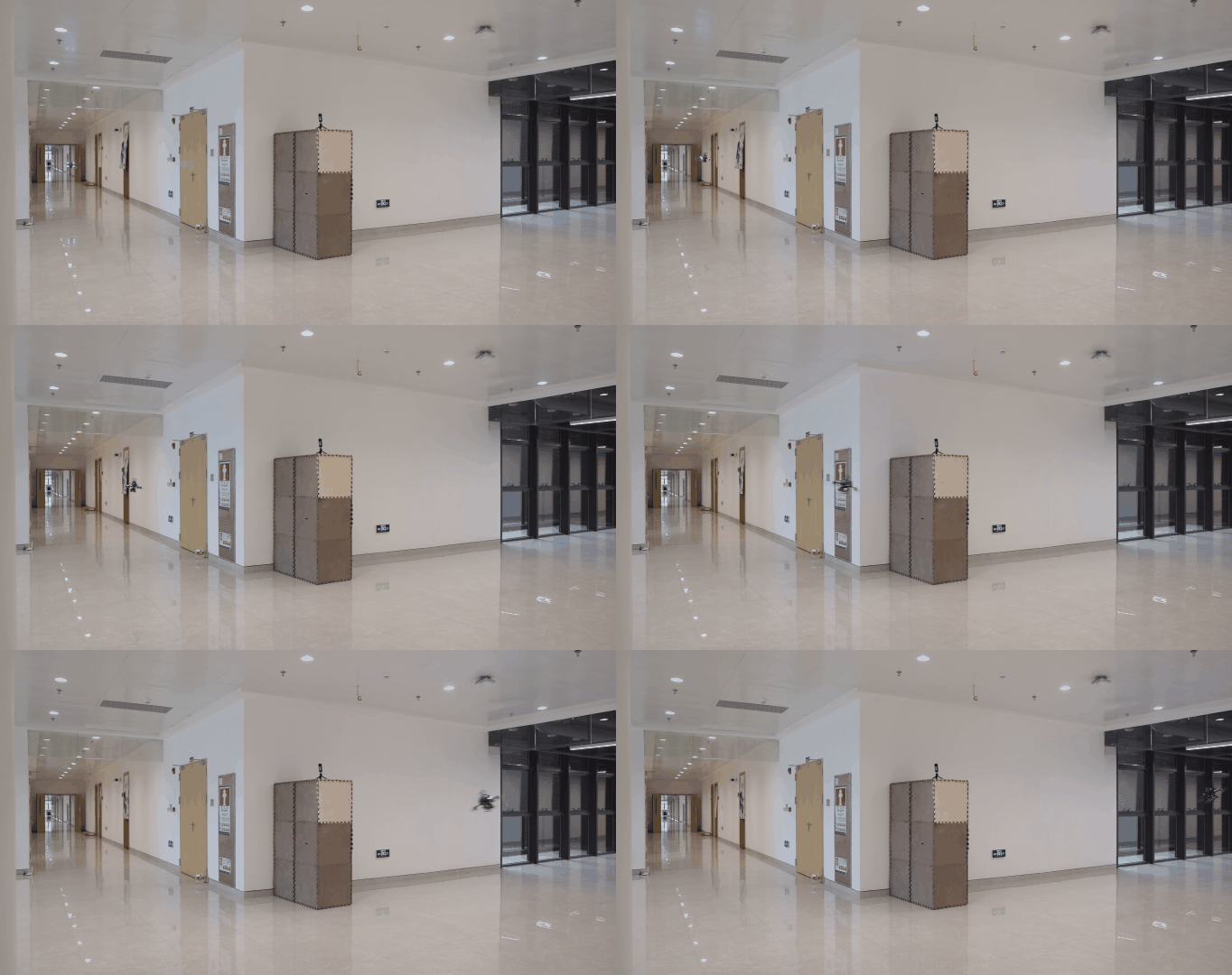 Example GIF created from a video file using dynamo-video-to-gif
Overview
The dynamo-video-to-gif tool converts video files to animated GIFs. It supports time range selection, frame rate control, resizing, and optional effects like boomerang (reverse) looping.
Command-Line Usage
dynamo-video-to-gif --video_path <path> [options]
Required Arguments
| Argument | Description |
|---|---|
--video_path |
Path to the input video file |
Optional Arguments
| Argument | Default | Description |
|---|---|---|
--output |
Auto | Output file path (default: <video_name>.gif) |
--fps |
10 |
Output GIF frame rate |
--start_t |
0 |
Start time in seconds |
--end_t |
End of video | End time in seconds |
--scale |
1.0 |
Scale factor for output size (0.01-2.0) |
--width |
None | Target width in pixels (maintains aspect ratio, overrides --scale) |
--crop_left |
0 |
Pixels to crop from the left edge (after scaling) |
--crop_right |
0 |
Pixels to crop from the right edge (after scaling) |
--crop_top |
0 |
Pixels to crop from the top edge (after scaling) |
--crop_bottom |
0 |
Pixels to crop from the bottom edge (after scaling) |
--speed |
1.0 |
Playback speed multiplier (e.g. 2.0 = 2x faster, 0.5 = half speed) |
--loop |
0 |
Number of loops (0 = infinite) |
--no_optimize |
false |
Disable GIF optimization |
--reverse |
false |
Add reverse frames for boomerang effect |
--disable_pbar |
false |
Disable progress bar |
--info_only |
false |
Only display video information |
Usage Examples
Full Example
Create a high-quality, cropped, sped-up GIF from a specific time range:
dynamo-video-to-gif --video_path ./example/video.mp4 \
    --start_t 1.5 --end_t 4.0 \
    --fps 15 --width 480 \
    --crop_top 50 --crop_bottom 50 --speed 1.5 \
    --reverse --output ./example.gif
Basic Conversion
Convert an entire video to GIF with default settings:
dynamo-video-to-gif --video_path input.mp4
Extract a Time Range
Create a GIF from seconds 2 to 5 of the video:
dynamo-video-to-gif --video_path input.mp4 --start_t 2.0 --end_t 5.0
Control Frame Rate
Create a smoother GIF with higher frame rate:
dynamo-video-to-gif --video_path input.mp4 --fps 15
Create a smaller file with lower frame rate:
dynamo-video-to-gif --video_path input.mp4 --fps 5
Resize Output
Scale down to 50% of original size:
dynamo-video-to-gif --video_path input.mp4 --scale 0.5
Set a specific width (height auto-calculated):
dynamo-video-to-gif --video_path input.mp4 --width 320
Crop Output
Crop pixels from specific edges (applied after scaling):
dynamo-video-to-gif --video_path input.mp4 --crop_left 100 --crop_right 100
Crop from all edges:
dynamo-video-to-gif --video_path input.mp4 --crop_top 50 --crop_bottom 50 --crop_left 100 --crop_right 100
Combine with scaling (crop is applied after scale):
dynamo-video-to-gif --video_path input.mp4 --width 800 --crop_top 50 --crop_bottom 50
Change Playback Speed
Speed up the GIF to 2x:
dynamo-video-to-gif --video_path input.mp4 --speed 2.0
Slow down to half speed:
dynamo-video-to-gif --video_path input.mp4 --speed 0.5
Boomerang Effect
Create a GIF that plays forward then backward:
dynamo-video-to-gif --video_path input.mp4 --reverse
Get Video Information Only
Display video properties without converting:
dynamo-video-to-gif --video_path input.mp4 --info_only
Output:
 -- Load Param: video path input.mp4
 -- Load Param: fps 10
 -- Load Param: start_t 0
 -- Load Param: end_t None
 -- Load Param: scale 1.0
 -- Load Param: width None
 -- Load Param: crop_left 0
 -- Load Param: crop_right 0
 -- Load Param: crop_top 0
 -- Load Param: crop_bottom 0
 -- Load Param: speed 1.0
 -- Load Param: loop 0
 -- Load Param: optimize True
 -- Load Param: reverse False
 -- Video: input.mp4
 -- Dimensions: 1920x1080
 -- Frames: 3600
 -- FPS: 30.00
 -- Duration: 120.00 seconds
Python API
You can also use the VideoToGif class programmatically:
from dynamo_figures.video_to_gif import VideoToGif

# Create a GIF from a video
converter = VideoToGif(
    video_path="./video.mp4",
    fps=15,
    start_t=2.0,
    end_t=5.0,
    scale=0.5,
    reverse=True
)

# Convert and save
success = converter.convert("output.gif")

if success:
    print("GIF created successfully!")
Constructor Parameters
VideoToGif(
    video_path,           # Path to input video file
    fps=10,               # Output GIF frame rate
    start_t=0,            # Start time in seconds
    end_t=None,           # End time in seconds (None = end of video)
    scale=1.0,            # Scale factor for output size
    width=None,           # Target width (overrides scale)
    crop_left=0,          # Pixels to crop from left edge (after scaling)
    crop_right=0,         # Pixels to crop from right edge (after scaling)
    crop_top=0,           # Pixels to crop from top edge (after scaling)
    crop_bottom=0,        # Pixels to crop from bottom edge (after scaling)
    speed=1.0,            # Playback speed multiplier
    loop=0,               # Number of loops (0 = infinite)
    optimize=True,        # Optimize GIF for smaller size
    reverse=False,        # Add reverse frames (boomerang)
    disable_pbar=False    # Disable progress bar
)
Methods
| Method | Returns | Description |
|---|---|---|
get_video_info() |
dict or None |
Get video properties as a dictionary |
extract_frames() |
list or None |
Extract frames as numpy arrays (RGB) |
convert(output_path) |
bool |
Convert video to GIF and save to path |
Video Info Dictionary
The get_video_info() method returns a dictionary with the following keys:
| Key | Type | Description |
|---|---|---|
path |
str |
Path to the video file |
width |
int |
Video width in pixels |
height |
int |
Video height in pixels |
frame_count |
int |
Total number of frames |
fps |
float |
Frames per second |
duration |
float |
Duration in seconds |
Tips for Smaller GIF Files
GIF files can get large quickly. Here are some tips to reduce file size:
1. Lower Frame Rate
Reduce FPS to the minimum acceptable level:
dynamo-video-to-gif --video_path input.mp4 --fps 8
2. Resize the Output
Scale down the resolution:
dynamo-video-to-gif --video_path input.mp4 --scale 0.5
# or
dynamo-video-to-gif --video_path input.mp4 --width 320
3. Shorter Duration
Extract only the most important part:
dynamo-video-to-gif --video_path input.mp4 --start_t 1.0 --end_t 3.0
4. Keep Optimization Enabled
Don’t use --no_optimize unless necessary.
Dependencies
The dynamo-video-to-gif tool requires Pillow for GIF creation:
pip install Pillow
Pillow is automatically installed when you install the
dynamo-figurespackage.
Supported Formats
Input Video Formats
Any video format supported by OpenCV:
- MP4 (
.mp4) - AVI (
.avi) - MOV (
.mov) - MKV (
.mkv) - WebM (
.webm) - And many more…
Output Format
- GIF (
.gif)